> For the complete documentation index, see [llms.txt](https://design-packs.gitbook.io/docs/llms.txt). Markdown versions of documentation pages are available by appending `.md` to page URLs; this page is available as [Markdown](https://design-packs.gitbook.io/docs/fundamentals/global-section-settings/enable-metafield-detection-setting/metafield-ready-sections.md).
# Metafield ready sections
We're migrating our sections to be Metafield ready. This is primarily useful for product pages. What you'll now be able to do is set up Metafields/MetaObjects for each product.
## The Basics
For sections that are Metafield enabled you'll see an option to `Enable metafield detection`\` that can be set. This will remove the default content and allow the section to disappear on pages where no data is set.
### Create MetaObjects
For sections with blocks, the ideal structure is often creating a MetaObject definition that corresponds with all the options that can have dynamic data.
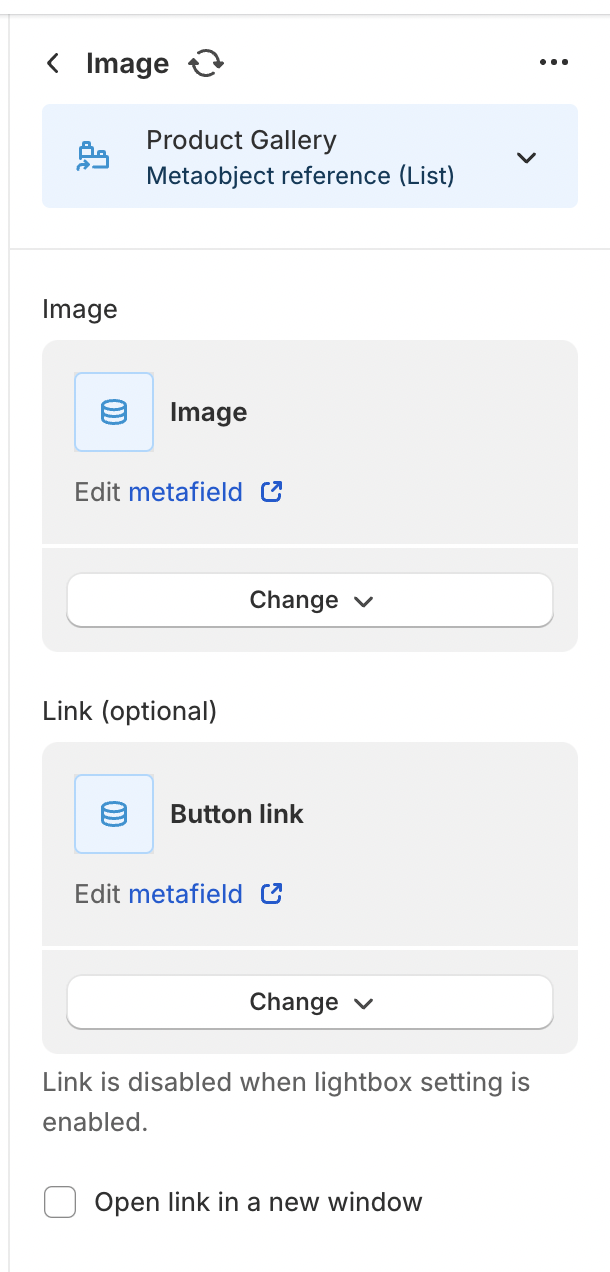
For example in the Gallery grid, for the image block, the image and the link can have dynamic data. You can tell by the cylinder beside the field.
In this case, you'd make a MetaObject definition that would have an File/image field and a URL field. Then you'd make an entry for each image you'd want for any product.
### Create a Metafield
You'd then want to make a Metafield on the product that would be a list of gallery image MetaObjects.
### Connect MetaObjects to Product via the Metafield
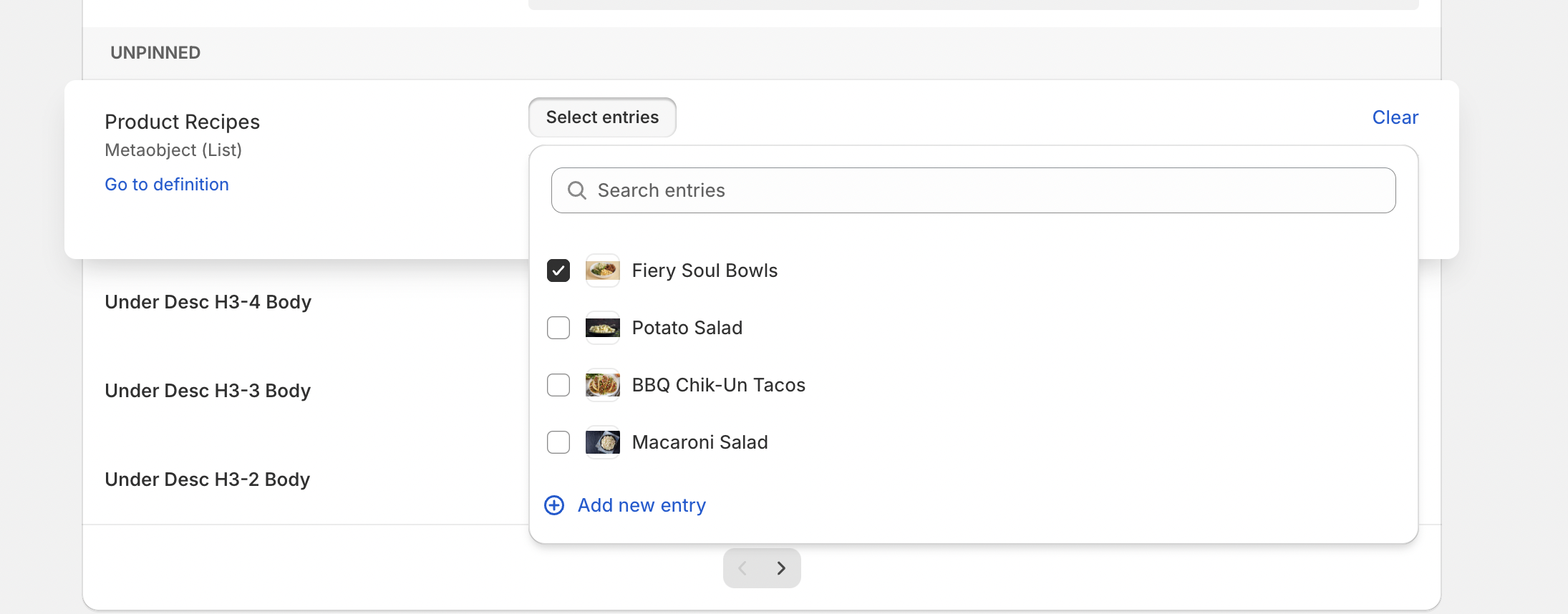
On the product page, you'll now be able to choose from any entry of the Gallery images available and you can connect any number of them.
### Setup in theme editor
Once the Metafields are set up, you can go to the theme editor add the section, then add an image block. At the top of the image block you see a connect dynamic source for the block. Choose this and select the metafield. This will populate a block per MetaObject and set the data up.
If the data doesn't line up correctly, you can go in a manually re-align it.
## Gallery Grid
Gallery grid is one of the first sections we've converted. Now you can have a unique gallery on each product page, and if some of the products don't have a gallery the section will eleganly disappear for that product.
## Sections with "Enable metafield detection" Setting
### Banner & Hero Sections
* Banner - Video Background
* Banner Image - Parallax
* Banner Image - Simple
* Banner Image with Accounts
* Banner Image with Angles v2
* Banner Image with Boxes v2
* Banner Image with Geolocation v2
* Banner Image with Scheduling v2
* Slideshow with Text
### Collection Sections
* Featured Collection - Expand
* Featured Collection - Scroll
* Featured Collection - Simple
* Featured Collection - Slider
* Featured Collection - Slider w/ Text
* Featured Collection with Text
* Featured Collection - Blocks
* Featured Collection - Fashion
* Featured Collection - Lifestyle
* Featured Collection - Masonry
* Featured Collection - Vibe
* Product List - Lifestyle
### Content Sections
* About with Parallax
* About with Photo Frame v2
* Address with Map
* Announcement - Slider
* Artistic Arches
* Columns - Simple
* FAQ - Icons
* Image with Text
* Video with Text
### Blog & Gallery Sections
* Blog - Tagged Grid
* Blog - Tagged Scroll
* Gallery Grid
* Lookbook Grid